
Disclosure: HomeAppliancePicks.com is a participant in the Amazon Services LLC Associates Program. As an Amazon Associate, we earn from qualifying purchases at no extra cost to you. Commissions never influence our picks.
How to Set Up Zigbee Smart Plugs with Home Assistant (Step-by-Step 2026)
📋 Quick Navigation
If you want to know how to set up Zigbee smart plugs with Home Assistant, you are in the right place. Zigbee is the most reliable protocol for local smart home control — no cloud dependency, no monthly fees, faster response than Wi-Fi, and a self-healing mesh that gets stronger with every device you add. But the setup process trips up a lot of first-time users because there are two integration paths — Zigbee2MQTT and ZHA — and picking the wrong one for your plug can cost you hours of frustration.
We have set up dozens of Zigbee smart plugs across both integration paths and this guide gives you the exact steps that work. Whether you are using a SONOFF S40 Lite, an Aqara plug, IKEA TRADFRI, or any other compatible device — you will have it paired, named, and reporting to your Energy dashboard by the end of this page. If you have not yet chosen a plug, jump to our best picks section below or read our full best Zigbee smart plug for Home Assistant guide first.
What You Need Before Starting
Before opening Home Assistant, make sure you have all three components ready. Missing any one of them means the setup will stall mid-process.
1. A Zigbee Coordinator (USB Dongle)
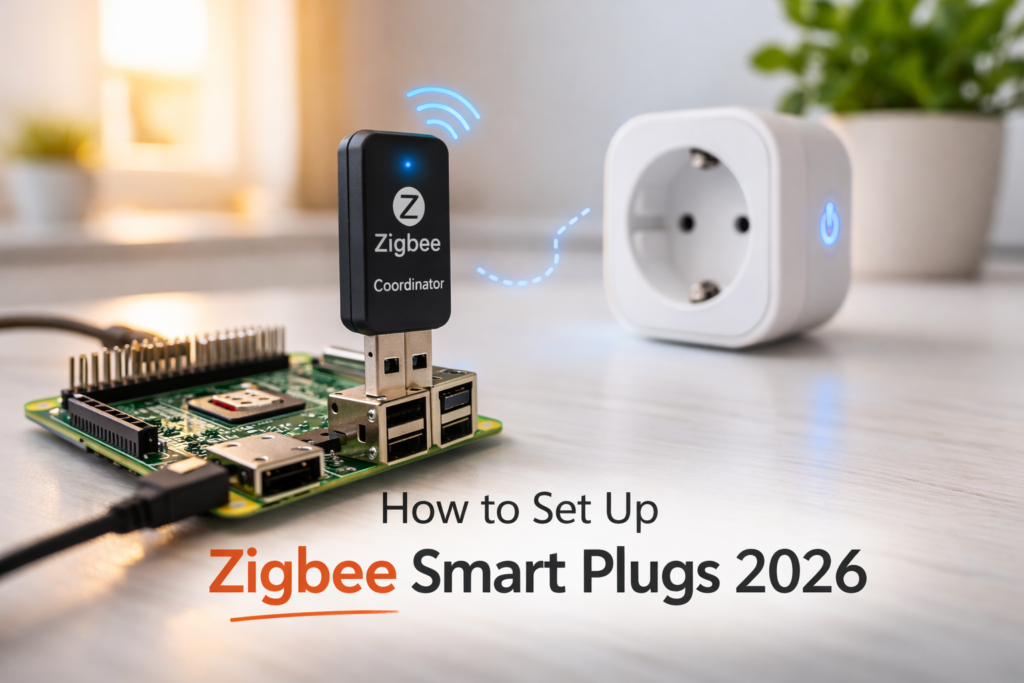
This is the hardware bridge between Home Assistant and your Zigbee devices. The most reliable and widely supported options in 2026 are the SONOFF Zigbee 3.0 USB Dongle Plus and the HUSBZB-1. Both work with Zigbee2MQTT and ZHA. Plug the dongle into a USB port on your Home Assistant server — if you are running on a Raspberry Pi, use a short USB extension cable to avoid radio interference from the Pi itself.
2. A Running Home Assistant Instance
This guide assumes you are running Home Assistant OS (formerly HassIO) version 2024.1 or later. If you are on Home Assistant Container or Core, the add-on installation steps will differ — check the official documentation for your specific installation type. You need access to the Home Assistant UI via a browser at your local IP address (typically http://homeassistant.local:8123).
3. A Compatible Zigbee Smart Plug
Not every Zigbee plug pairs cleanly with every integration. Before buying, verify your plug appears on the Zigbee2MQTT supported devices list or the ZHA device compatibility list. Our top tested picks — SONOFF S40 Lite, Aqara, Third Reality, and IKEA TRADFRI — all work with both integrations. For the full tested ranking, see our best Zigbee smart plugs guide.
Zigbee2MQTT vs ZHA — Which Should You Use?
This is the first decision you need to make, and it is worth getting right before you install anything. Both paths work — they just suit different setups and users.
| Zigbee2MQTT | ZHA (Zigbee Home Automation) | |
|---|---|---|
| Device support | 3,000+ devices — largest library | 1,500+ devices — solid but smaller |
| Setup difficulty | Moderate — requires MQTT broker | Easy — built into Home Assistant |
| Entity quality | More detailed, more attributes exposed | Clean and reliable for standard use |
| Energy monitoring | More granular data — watts, amps, voltage | Basic power consumption reporting |
| Best for | Advanced users, energy monitoring, large setups | Beginners, simple on/off automation, small setups |
Our recommendation: If you plan to monitor energy usage — which is the main reason people buy smart plugs for Home Assistant — use Zigbee2MQTT. The additional MQTT setup takes 15 extra minutes but the entity quality is worth it. If you just want on/off control and fast setup, ZHA gets you running in under 10 minutes.
How to Set Up Zigbee Smart Plugs Using Zigbee2MQTT
Step 1 — Install the Mosquitto MQTT Broker
Go to Settings → Add-ons → Add-on Store in your Home Assistant UI. Search for Mosquitto broker and click Install. Once installed, click Start and enable Start on boot and Watchdog. This is the communication layer that Zigbee2MQTT uses to talk to Home Assistant.
Step 2 — Install Zigbee2MQTT Add-on
Zigbee2MQTT is not in the default add-on store. You need to add the repository manually. Go to Settings → Add-ons → Add-on Store → three-dot menu (top right) → Repositories. Paste this URL and click Add:
Refresh the page and search for Zigbee2MQTT — install it from the new repository, not any unofficial version.
Step 3 — Configure Your USB Coordinator
Before starting Zigbee2MQTT, you need to point it at your USB dongle. Go to the Zigbee2MQTT add-on → Configuration tab. In the configuration editor, set the serial port to your dongle’s path. For most SONOFF dongles this is /dev/ttyUSB0 or /dev/ttyACM0. If you are unsure which path your dongle uses, go to Settings → System → Hardware in Home Assistant and look for your USB device in the list.
ttyUSB0 — it looks like /dev/serial/by-id/usb-SONOFF_.... This path stays consistent even if you reboot or replug, preventing the coordinator from disappearing after a restart.
Step 4 — Start Zigbee2MQTT and Verify Connection
Click Start on the Zigbee2MQTT add-on. Open the Log tab and wait 30 seconds. You should see a line saying Zigbee2MQTT started successfully and your coordinator’s firmware version. If you see connection errors, double-check the serial port path from Step 3. Once running, the Zigbee2MQTT frontend appears in your Home Assistant sidebar.
How to Set Up Zigbee Smart Plugs Using ZHA
ZHA is built into Home Assistant — no extra add-ons needed. Go to Settings → Devices & Services → Add Integration. Search for Zigbee Home Automation and click it. Home Assistant will auto-detect your USB coordinator in most cases. If it does not, manually select the serial port from the dropdown — the same /dev/ttyUSB0 or by-ID path described above.
Select your radio type — for SONOFF Zigbee 3.0 dongles select EZSP. For HUSBZB-1 select EZSP as well. For ConBee II select deconz. Click Submit and ZHA will initialize your coordinator. The whole process takes under 3 minutes and no configuration file editing is required.
Pairing Your Zigbee Smart Plug — Step by Step
This section is the same whether you are using Zigbee2MQTT or ZHA. The pairing process itself is identical — only where you initiate it differs.
For Zigbee2MQTT
Open the Zigbee2MQTT frontend from your sidebar. Click Permit Join (All) — this opens a 255-second pairing window. Now put your smart plug into pairing mode. For most plugs this means holding the button for 5 seconds until the LED flashes rapidly. For IKEA TRADFRI plugs, press the button 6 times quickly. The plug will appear in the Zigbee2MQTT device list within 30 seconds. Click the device, add a friendly name, and click Update.
For ZHA
Go to Settings → Devices & Services → Zigbee Home Automation → Configure → Add Device. This opens the pairing window. Put your plug into pairing mode exactly as above. ZHA will discover the device and automatically create entities in Home Assistant. You will find them under Settings → Devices & Services → Zigbee Home Automation → Devices.
Naming Your Device
Name every device immediately after pairing — before adding a second one. Use a location-based naming convention like Kitchen Counter Plug or Office Desk Plug. Generic names like Smart Plug 1 become confusing the moment you have five plugs in your setup. Good naming now saves serious debugging time later.
Adding Your Zigbee Plug to the Home Assistant Energy Dashboard
This is the feature that makes smart plugs genuinely useful beyond just remote on/off. The Home Assistant Energy dashboard tracks real-time and historical power consumption per device — so you can see exactly how much electricity your appliances are using and what they cost.
Your plug needs to support energy monitoring for this to work. Our tested picks — SONOFF S40 Lite, Tuya Zigbee, and Third Reality — all expose power consumption entities. IKEA TRADFRI does not. Check your specific plug’s Zigbee2MQTT device page to confirm it exposes a power entity before purchasing if energy monitoring is your goal.
Adding to the Energy Dashboard
Go to Settings → Dashboards → Energy. Under Individual Devices, click Add Device. Select the energy entity from your plug — it will be named something like sensor.kitchen_plug_energy. Set your electricity cost per kWh (check your utility bill for this number) and click Save. Your plug now reports to the Energy dashboard and tracks cumulative consumption over time.
Troubleshooting Common Zigbee Smart Plug Issues
Plug Not Found During Pairing
The most common cause is distance. Zigbee has a range of about 10 meters through walls — during pairing, bring the plug within 2 meters of your coordinator dongle. Once paired and added to the mesh, you can move it to its permanent location. Also verify the plug is actually in pairing mode — a rapidly flashing LED confirms this. If the LED is solid or slow-flashing, the plug is not in pairing mode yet.
Plug Drops Off the Mesh After a Few Days
This is a mesh coverage issue, not a plug defect. Zigbee devices act as both endpoints and mesh repeaters — but battery-powered devices do not repeat. Mains-powered plugs do. If your plug is dropping off, it is too far from the nearest mains-powered repeater. Add another plug or a dedicated Zigbee repeater between your coordinator and the dropping device. This is why buying plugs from the same Zigbee ecosystem as your other devices helps — they all reinforce the same mesh.
Coordinator Not Detected at Serial Port
Unplug the dongle and replug it. Check Home Assistant Hardware page to confirm the path. If you are using a Raspberry Pi, try a different USB port. Interference from the Pi’s USB 3.0 ports is a known issue with some 2.4GHz dongles — move the dongle to a USB 2.0 port or use a USB extension cable to physically separate it from the Pi board.
Energy Monitoring Not Appearing in Zigbee2MQTT
Some plugs require a firmware update to expose power entities. Check the Zigbee2MQTT device page for your specific model — it will list all supported features and note if any require an OTA update. In Zigbee2MQTT, go to your device → OTA tab → check for updates. The SONOFF S40 Lite and Tuya Zigbee plugs both expose full energy monitoring out of the box without any firmware update needed.
Our Best Zigbee Smart Plug Picks for Home Assistant
Now that you know how to set up and pair any Zigbee smart plug with Home Assistant, the right product choice makes the whole process faster and more reliable. Here are our top tested picks.
🏆 Best Overall — SONOFF S40 Lite Zigbee Smart Plug
The SONOFF S40 Lite is our #1 pick for Home Assistant users — it pairs in under 30 seconds with both Zigbee2MQTT and ZHA, exposes full energy monitoring entities immediately, and acts as a reliable mesh repeater. At around $10 it is the best value Zigbee plug we have tested at any price.
📋 Full Zigbee Smart Plug Comparison — All Hubs
Need a plug for SmartThings, Hubitat, or Philips Hue instead of Home Assistant? Our complete guide covers all major Zigbee hubs and ranks the top 5 plugs across every ecosystem — including budget picks under $10 and premium options with advanced energy monitoring.
Frequently Asked Questions
How do I set up a Zigbee smart plug with Home Assistant?
You need a Zigbee coordinator USB dongle, either Zigbee2MQTT with Mosquitto broker or the built-in ZHA integration, and a compatible plug. Install your chosen integration, plug in the coordinator, open a pairing window, put the plug into pairing mode by holding its button for 5 seconds, and it appears in Home Assistant within 30 seconds. Full steps are covered above in this guide.
What is better for Home Assistant — Zigbee2MQTT or ZHA?
Zigbee2MQTT supports 3,000+ devices, exposes more detailed entities, and provides better energy monitoring data — making it the better choice for most users. ZHA requires no extra add-ons and sets up in under 10 minutes, making it better for beginners who only need basic on/off control.
Which Zigbee smart plug works best with Home Assistant?
The SONOFF S40 Lite is our top pick — it pairs instantly with both integrations, exposes full energy monitoring, acts as a mesh repeater, and costs around $10. See our full tested ranking in the best Zigbee smart plug for Home Assistant guide.
Why is my Zigbee plug not pairing with Home Assistant?
Most pairing failures come down to distance — bring the plug within 2 meters of the coordinator during pairing. Also confirm the plug is actually in pairing mode — the LED should flash rapidly. If the pairing window timed out, open a new one and try again. Step-by-step troubleshooting is in the section above.
Can I use Zigbee smart plugs without a hub in Home Assistant?
Zigbee plugs always require a Zigbee coordinator USB dongle — but there is no cloud hub, no subscription, and no external service needed. The dongle runs entirely locally on your Home Assistant server. It is a one-time ~$20 hardware purchase that powers your entire Zigbee network.
Do Zigbee smart plugs act as mesh repeaters in Home Assistant?
Yes — every mains-powered Zigbee plug extends your mesh automatically. Each plug you add strengthens the network for all other Zigbee devices in your home. Battery-powered devices do not repeat. This is why smart plugs are often the first Zigbee device experienced Home Assistant users buy — they build the mesh foundation for everything else.
How do I add a Zigbee plug to the Home Assistant Energy dashboard?
Go to Settings → Dashboards → Energy → Individual Devices → Add Device. Select the energy sensor from your plug. Your plug must support energy monitoring — SONOFF S40 Lite, Tuya Zigbee, and Third Reality all do. IKEA TRADFRI plugs do not. Full steps are in the Energy Dashboard section above.
What USB Zigbee coordinator works best with Home Assistant?
The SONOFF Zigbee 3.0 USB Dongle Plus is the most reliable choice in 2026. Works with both Zigbee2MQTT and ZHA, supports Zigbee 3.0, costs around $20, and has the largest community support base. Use a USB extension cable on Raspberry Pi to avoid 2.4GHz interference from the board itself.
Bottom Line: Setting Up Zigbee Smart Plugs with Home Assistant
Setting up Zigbee smart plugs with Home Assistant is a one-time 30-minute process that pays back every day in local control, energy monitoring, and rock-solid reliability. The key decisions are simple: use Zigbee2MQTT if energy monitoring matters to you, use ZHA if you want the fastest possible setup. Either way, your plugs will respond in under 100ms with zero cloud dependency.
For the right plug to pair with, the SONOFF S40 Lite is the safest choice — it pairs in seconds with both integrations and delivers full energy monitoring out of the box. For a full comparison of every tested Zigbee plug across all major smart home hubs, see our complete Zigbee smart plugs guide.
Affiliate Disclosure
How We Make Money on HomeAppliancePicks.com
HomeAppliancePicks.com is a participant in the Amazon Services LLC Associates Program, an affiliate advertising program designed to provide a means for sites to earn advertising fees by advertising and linking to Amazon.com. As an Amazon Associate, we earn from qualifying purchases. All product prices are accurate at the time of publication and are subject to change. We independently research, test, and recommend products; we may receive commissions on purchases made through our links at no extra cost to you.